AWS Serverless Architecture with SAM
Part 1 of 7 in a series on building a serverless backend with AWS SAM. Next: Building a REST API with AWS API Gateway & Lambda.
I recently found myself trying to build a backend architecture that would allow me to scrape data from a website and not only store its status in a database but also allow a csv dump of the data to be downloaded. I decided to leverage the AWS free tier and all the free resources provided to build this architecture. While working on this I referenced several great articles and posts to achieve what I wanted but it was time consuming and required a lot of trial and error to get the right combination. I decided to consolidate all those learnings and have a series of posts that outline how to build a complete serverless architecture on AWS using SAM CLI.
Here is a break down of how I cover creating this architecture - Part 1: Architecture overview & initial setup Part 2: Building a REST API with AWS API Gateway & Lambda Part 3: Storing AWS SQS messages to DynamoDB with AWS Lambda Part 4: Web Scraping with Selenium & AWS Lambda Part 5: Writing a CSV to S3 from AWS Lambda Part 6: Downloading a file from S3 using API Gateway & AWS Lambda Part 7: AWS Lambda & ECR nuances
Architecture Overview There is a lot going on in that image above and I like simple explanations, so I’ll attempt to offer one here. The workflow here resembles that of a Starbucks or Tim Hortons.
-
API Gateway: The gateway acts like the counter at a coffee shop, accepting orders & providing the ordered item. The gateway will map a POST request to the CREATE lambda for a new order and map a GET request to the GET STATUS lambda to fetch the status of the order
-
Create Lambda: This lambda acts like the POS terminal, validating the request made and generating an order for it. It also adds the order to a queue for processing SQS: This is the queue that keeps track of all incoming orders. We can use a FIFO queue if we want to ensure orders are processed in the order in which they were received
-
Process Lambda: This lambda is similar to a behind the scene worker that is fullfilling each incoming request and updating the system once the order is completed. Using our coffee shop example, this worker would read an order from the queue (SQS), make the coffee (scrape the website), place it on the counter for it to be picked up (S3 bucket in our case)& finally update the status of the order to completed (DynamoDB)
-
CSV Bucket: This is the location where processed orders are stored. In our case, we are going to drop the scraped data as a csv file in a S3 bucket
-
DynamoDB: We use dynamodb to store the requests and their status. We will also store the location of the csv file generated here.
-
Get Status Lambda: This lambda is similar to the worker that checks the status of your order, and if complete, points you to the location from where you can pick it up. In our case, the lambda checks a dynamodb table for the request status. For completed orders, it generates a pre-signed URL for the csv file which can be used by anyone to download the file directly from S3.
Initial Setup Before we begin implementing the architecture, we need to first get a couple of things setup locally to work with AWS.
Pre-requisites Docker - We will be using docker to containerize the python code along with its dependencies, including selenium for web scraping. Once installed, be sure to start docker on your machine.
VSCode - You may choose to use a different IDE, but I have used VS Code for my setup.
Python 3.9 - Here is a handy article on checking and installing the latest python version.
AWS CLI - Follow the instructions outlined here to create an aws account and get setup with aws cli.
AWS SAM CLI - Follow the instructions here to get setup with aws sam cli.
Create a new application
Run the below command in your terminal to create a new SAM application
sam init --package-type Image
This will start an interactive session for you to choose certain options. Choose the following -
Which template source would you like to use?
1 - AWS Quick Start Templates
2 - Custom Template Location
Choice: 1
Choose an AWS Quick Start application template
1 - Hello World Example
2 - Machine Learning
Template: 1
Which runtime would you like to use?
1 - dotnet6
2 - dotnet5.0
3 - dotnetcore3.1
4 - go1.x
5 - java11
6 - java8.al2
7 - java8
8 - nodejs16.x
9 - nodejs14.x
10 - nodejs12.x
11 - python3.9
12 - python3.8
13 - python3.7
14 - python3.6
15 - ruby2.7
Runtime: 11
Based on your selections, the only dependency manager available is pip.
We will proceed copying the template using pip.
Would you like to enable X-Ray tracing on the function(s) in your application?  [y/N]:
Project name [sam-app]: serverless-arch-example
Cloning from https://github.com/aws/aws-sam-cli-app-templates (process may take a moment)
-----------------------
Generating application:
-----------------------
Name: serverless-arch-example
Base Image: amazon/python3.9-base
Architectures: x86_64
Dependency Manager: pip
Output Directory: .
Next steps can be found in the README file at ./serverless-arch-example/README.md
Commands you can use next
=========================
[*] Create pipeline: cd serverless-arch-example && sam pipeline init --bootstrap
[*] Validate SAM template: sam validate
[*] Test Function in the Cloud: sam sync --stack-name {stack-name} --watch
Next, open the folder created in VS Code. You should see the following
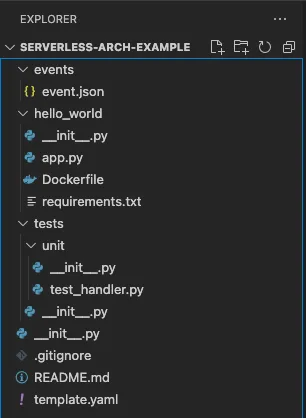
Open a new terminal at the folder (you can open a terminal from within VSCode by Terminal > New Terminal)
Build the app
To build the app (you will need docker & python 3.9 for this to work) -
sam build
You should see a message that says -
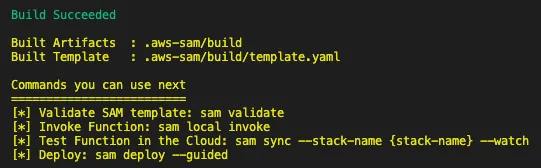
Test the app
To test the app locally (you will need docker & python 3.9 for this to work)-
sam local invoke
You should see the following output -
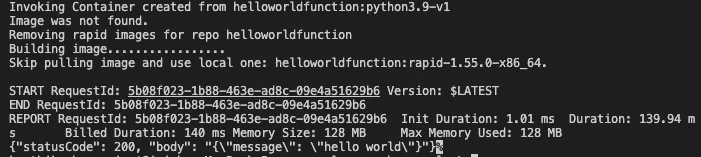
Deploy the app
We will deploy the app to aws by asking SAM to tag our docker container and push the docker image to a new ECR repository.
sam deploy --guided
This will again start an interactive session, choose the following inputs (blank would mean choosing the default option which is in uppercase) NOTE: Update the stack name & aws region as per your project specifications.
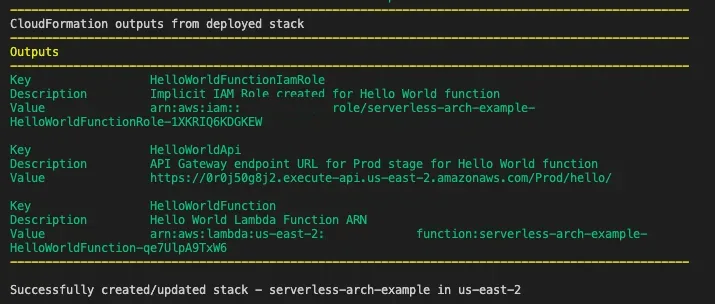
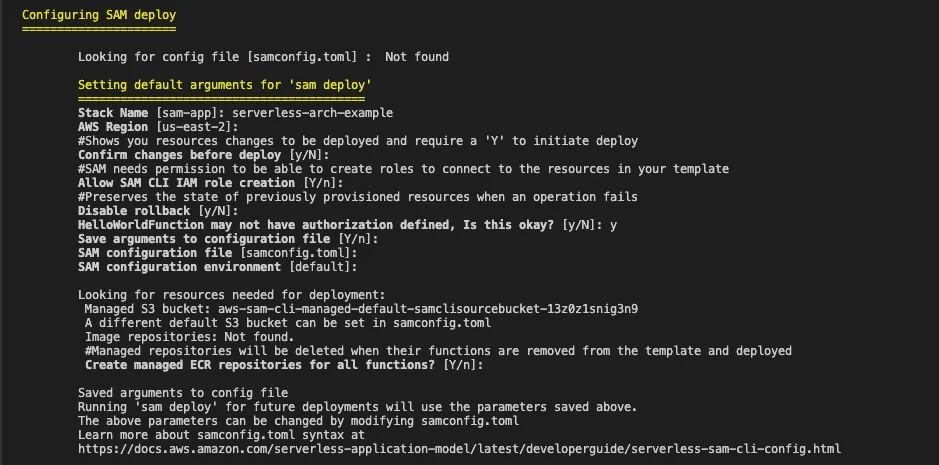 You should see the following once your app is deployed successfully -
Test the deployment
Grab the api URL from the output above and make a GET request to it using CURL
curl -X GET https://0r0j50g8j2.execute-api.us-east-2.amazonaws.com/Prod/hello/
And you should get a response back -
{"message": "hello world"}
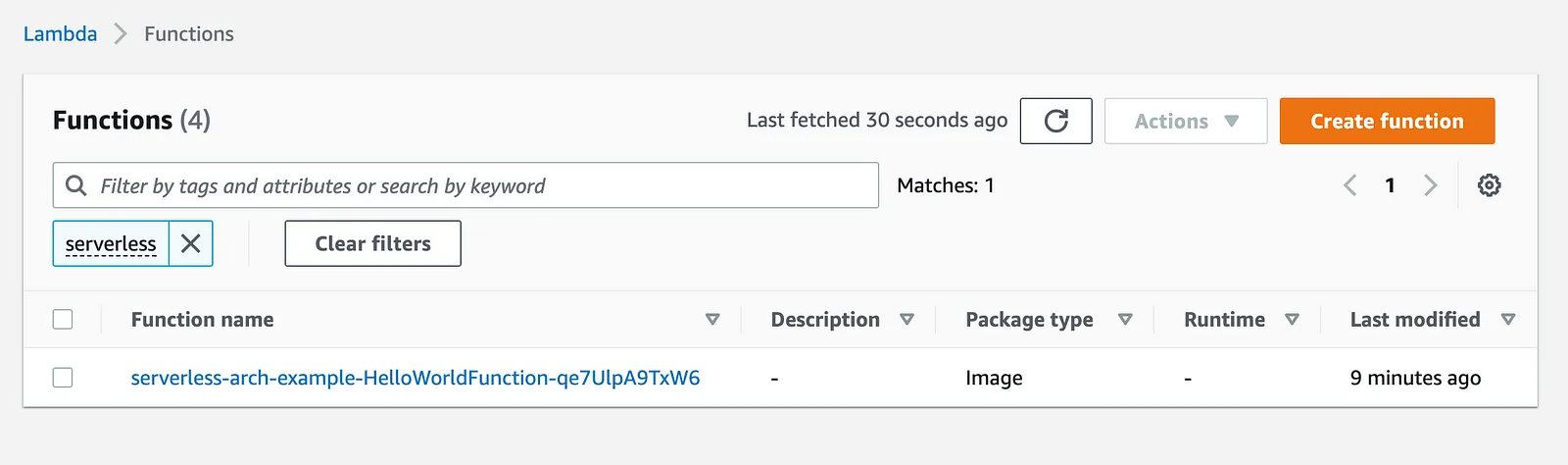
Verify the deployment using AWS Console You can login to the aws console as the IAM user and verify the deployment visually also. Be sure to select the correct aws region once you login to the console. To see the lambda, go to aws console > Lambda > Functions
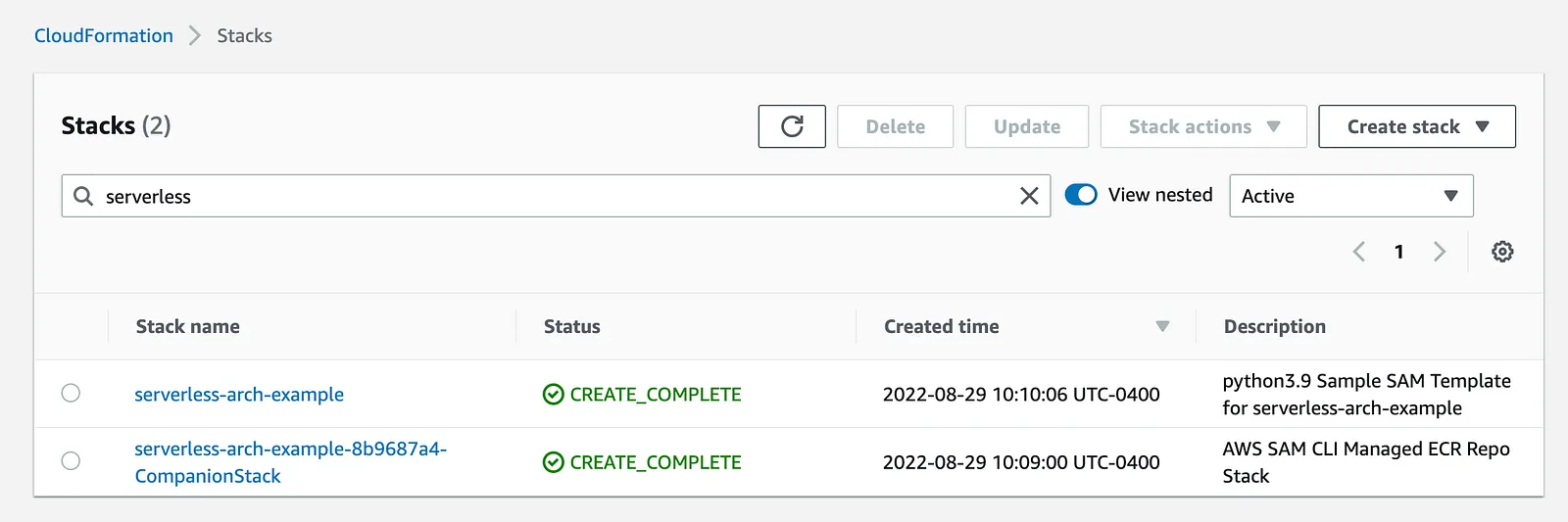
To see the cloud formation template that SAM generated, go to aws console > Cloudformation > Stacks
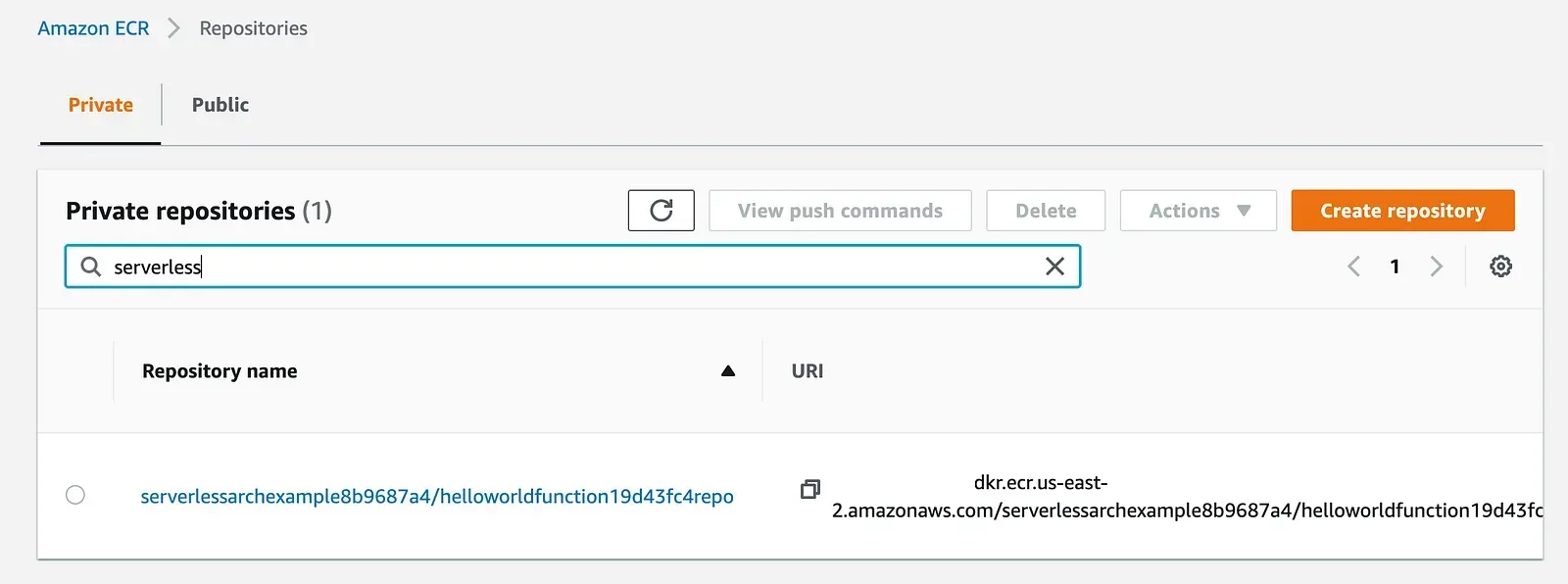
To see the repository that contains the docker image, go to aws console > Elastic Container Registry > Repositories
Clean up
To delete the app -
sam delete
If the clean up was successful, you should see the following output -

Source Code Here is the source code for the project created here.
Next: Part 2: Building a REST API with AWS API Gateway & Lambda