Writing a CSV to S3 from AWS Lambda
Part 5 of 7 in a series on building a serverless backend with AWS SAM. Previous: Web Scraping with Selenium & AWS Lambda. Next: Downloading a file from S3 using API Gateway & AWS Lambda.
In the last post I explained how to scrape a url with selenium and extract the number of search results returned by google for a query string. Let us now see how to insert these results into S3 as a csv file.
Setting up the S3 bucket
Update the template.yaml file and add a new resource for the S3 bucket -
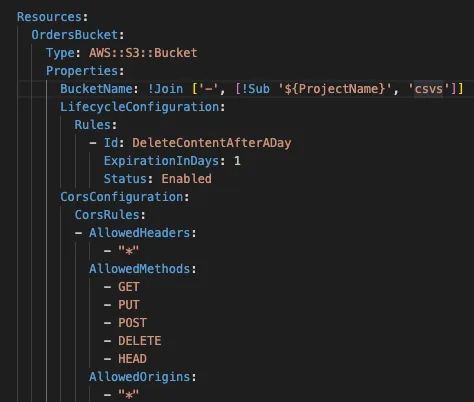
When defining the bucket we have specified a few additional properties -
-
LifecycleConfiguration: This is optional, but I have set this so that my csvs are deleted after a day since I don’t want them lying around forever
-
CorsConfiguration: In my use case I needed the objects in S3 to be available for download to anyone who has a pre-signed url. Because of this requirement I needed to specify a cors config that allowed any origin. Modify this as per your needs
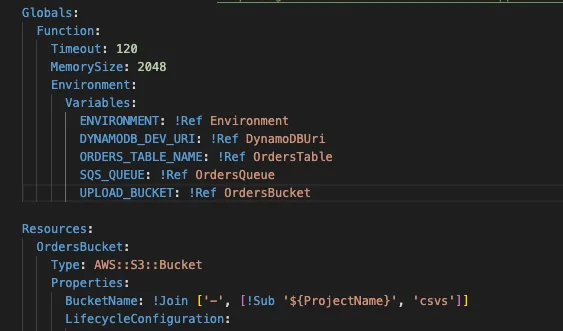
Lets also define a global environment variable for the bucket name so that the lambdas have the name available to them -
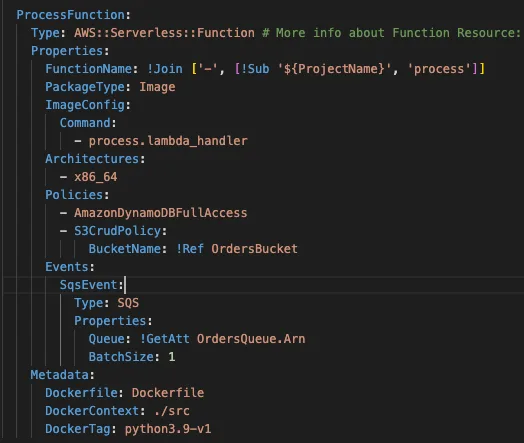
We also need to ensure that the Process lambda has access to write to the S3 bucket. Add a new policy to the lambda properties -
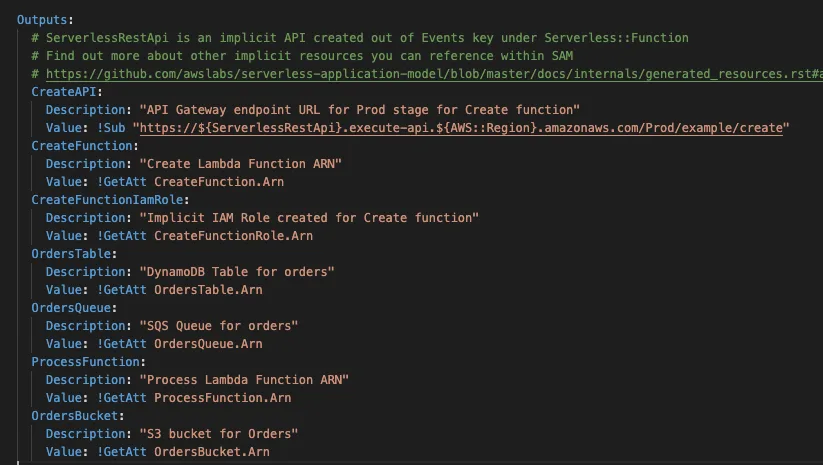
Finally, update the Outputs -
Update the process.py file with the following code - process.py
import json
from db import db_helper
from selenium.webdriver.common.by import By
from selenium import webdriver
from io import StringIO
import boto3
import csv
import os
from datetime import datetime

def lambda_handler(event=None, context=None):
    request = get_request(event=event)
    if request is None:
        return {
            "statusCode": 400,
            "body": {
                "message": "Cannot parse url"
            }
        }

    dbHelper = db_helper.DBHelper()
    try:
        dbHelper.update_order_status(request=request, status='In Progress')

        url = request['url']
        upload_bucket_name = str(os.environ['UPLOAD_BUCKET'])

        driver = get_driver()
        driver.get(url)
        search_results = driver.find_elements(By.XPATH, "//div[@data-header-feature]")
        result_list = []
        for result in search_results:
            result_list.append({"result": result.text})

        dt_string = datetime.now().strftime("%Y-%m-%d_%H%M")
        csv_file_name =  f'export_{dt_string}.csv'
        upload_csv_s3(result_list, upload_bucket_name, csv_file_name)
        dbHelper.update_order_status(request=request, status='Complete', location=csv_file_name)

    except Exception as e:
        print(e)
        dbHelper.update_order_status(request=request, status='Failed')
        return {
            "statusCode": 500,
            "body": {
                "message": f"Error processing request: {e}"
            }
        }

    return {
        "statusCode": 200,
        "body": json.dumps(
            {
                "records found": len(search_results),
            }
        ),
    }

def get_request(event) -> str:
    if "Records" in event:
        body = event['Records'][0]['body']
        event = json.loads(body)
    return event

def get_driver():
    chrome_options = webdriver.ChromeOptions()
    chrome_options.binary_location = "/opt/chrome/chrome"
    chrome_options.add_argument("--headless")
    chrome_options.add_argument("--no-sandbox")
    chrome_options.add_argument("--disable-dev-shm-usage")
    chrome_options.add_argument("--disable-gpu")
    chrome_options.add_argument("--disable-dev-tools")
    chrome_options.add_argument("--no-zygote")
    chrome_options.add_argument("--single-process")
    chrome_options.add_argument("window-size=2560x1440")
    chrome_options.add_argument("--remote-debugging-port=9222")
    input_driver = webdriver.Chrome("/opt/chromedriver", options=chrome_options)
    return input_driver

def upload_csv_s3(data_dictionary,s3_bucket_name,csv_file_name):
    print('Starting csv upload to S3')
    try:
        data_dict_keys = data_dictionary[0].keys()

        # creating a file buffer
        file_buff = StringIO()

        # writing csv data to file buffer
        writer = csv.DictWriter(file_buff, fieldnames=data_dict_keys)
        writer.writeheader()
        writer.writerows(data_dictionary)

        # creating s3 client connection
        client = boto3.client('s3')

        # placing file to S3, file_buff.getvalue() is the CSV body for the file
        client.put_object(Body=file_buff.getvalue(), Bucket=s3_bucket_name, Key=csv_file_name)
        print('Completed uploading to S3')
    except Exception as e:
        print(e)
raise eNote: The update order status call for complete was also modified to include the csv file name
Deploying & Testing
Unlike before, we are going to first deploy our changes to aws so that the S3 bucket gets created and then test our code.
sam build
sam deploy
You should see an output like this -
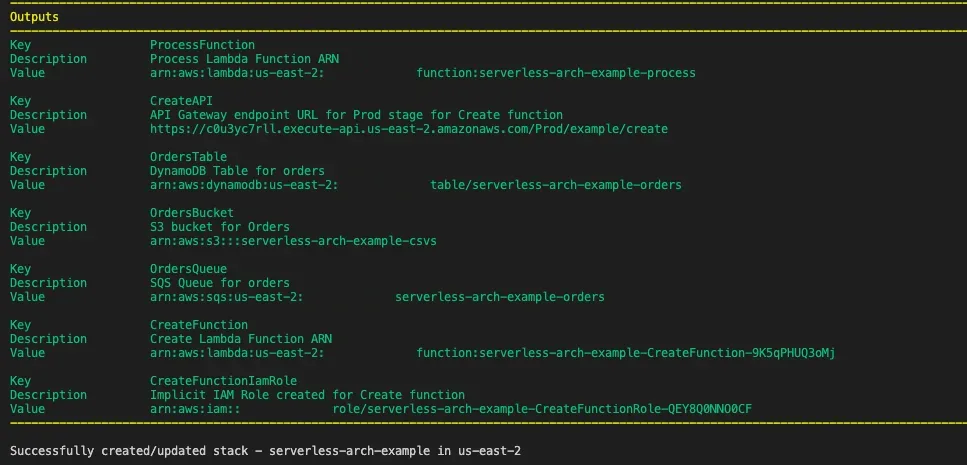
Validate the changes
To validate the changes, lets make another post call from postman to the prod api gateway -
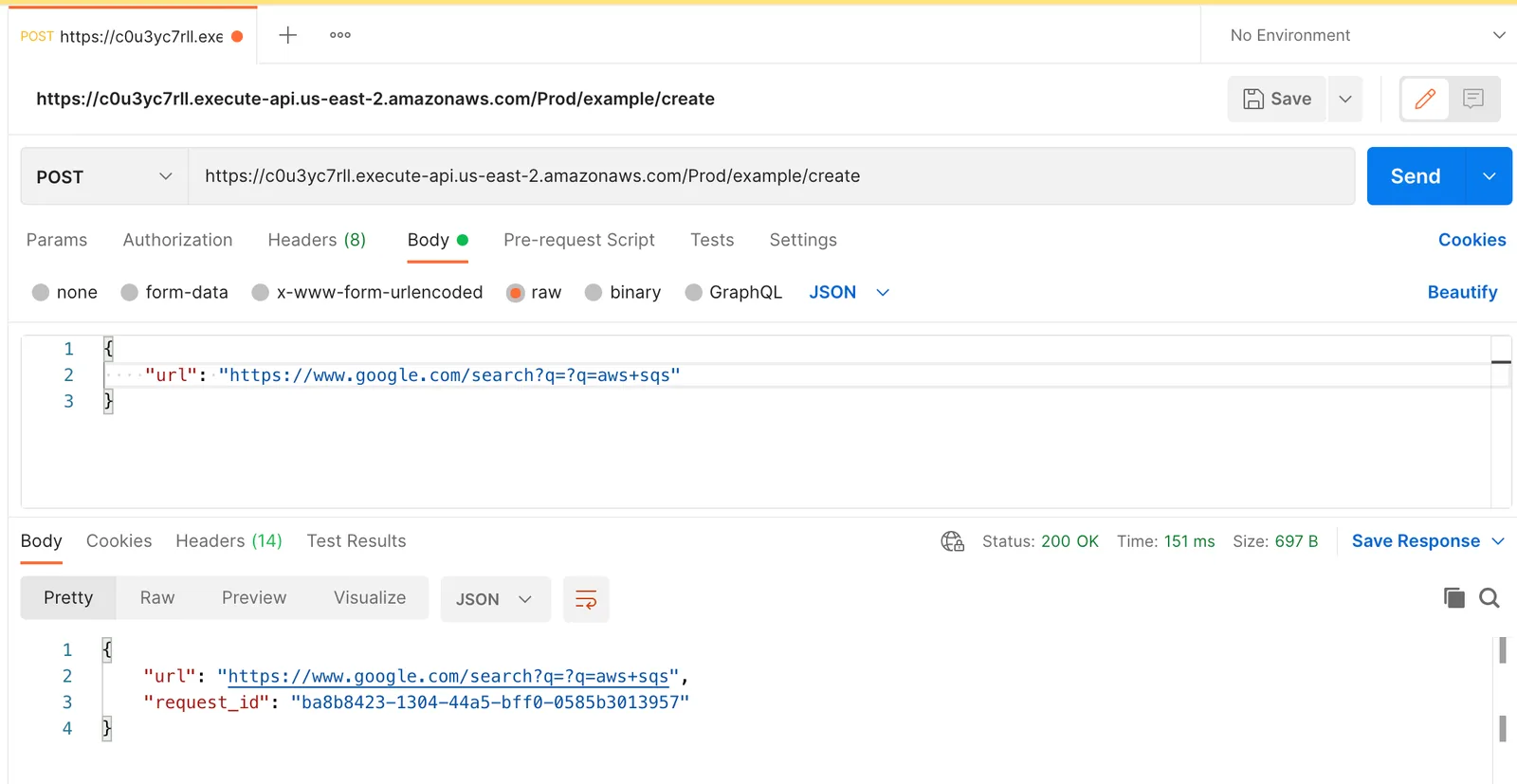
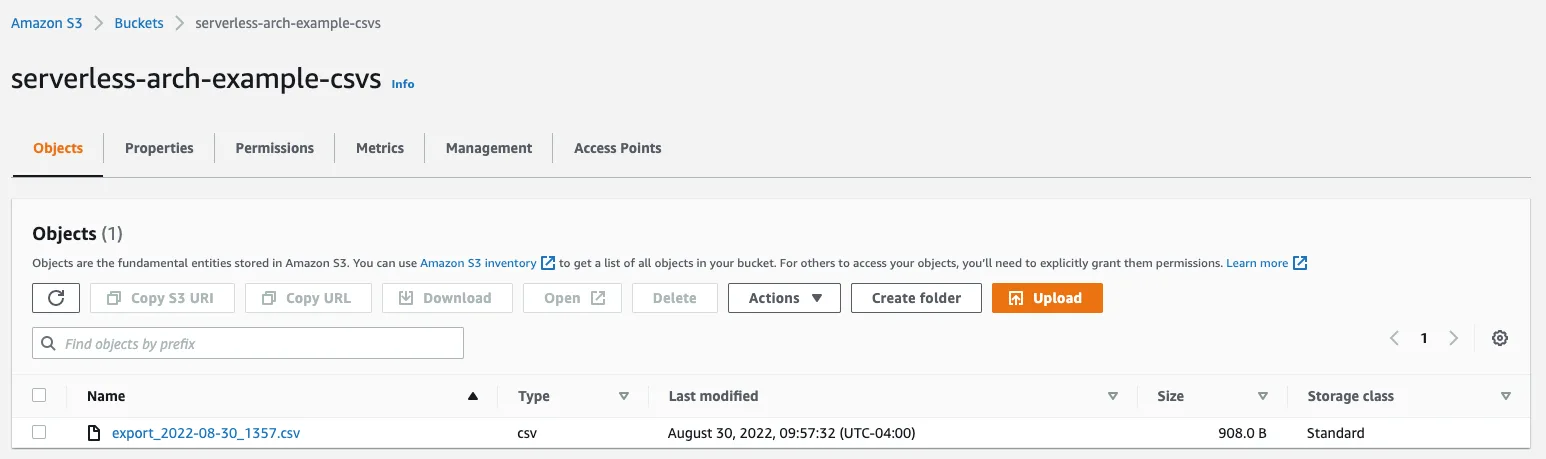
Now login to aws console and check the S3 bucket, you should see the csv file created -
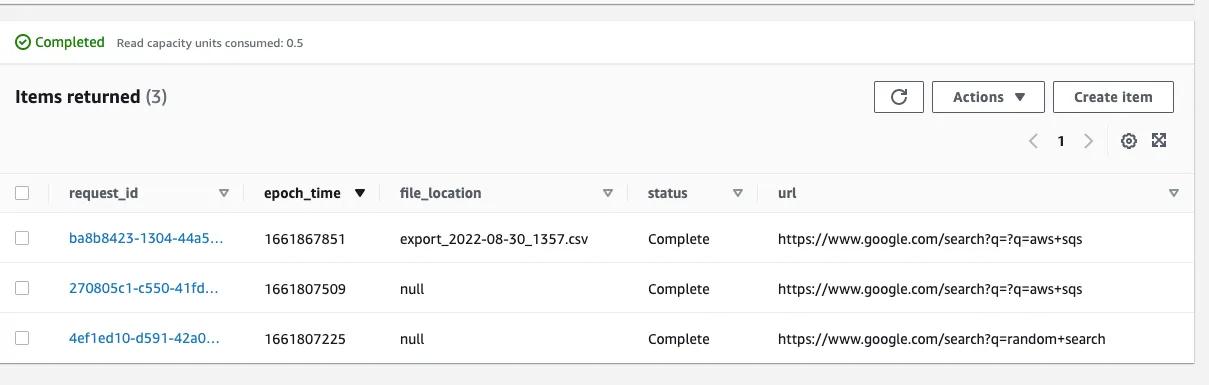
Looking at the dynamodb table we can see that the file_location was also updated with the csv file name
Source Code
Here is the source code for the project created here.
Next: Part 6: Downloading a file from S3 using API Gateway & AWS Lambda